
Documentation Index
Fetch the complete documentation index at: https://docs.coffeerms.com/llms.txt
Use this file to discover all available pages before exploring further.
Organization Management Workflow
This workflow explains how admins add, edit, activate, and delete organizations inside the RMS.Add Organization
- Click Add Organization
- Enter Organization Name
- Upload/select a logo
- Click Save
- New organization is added as Inactive by default
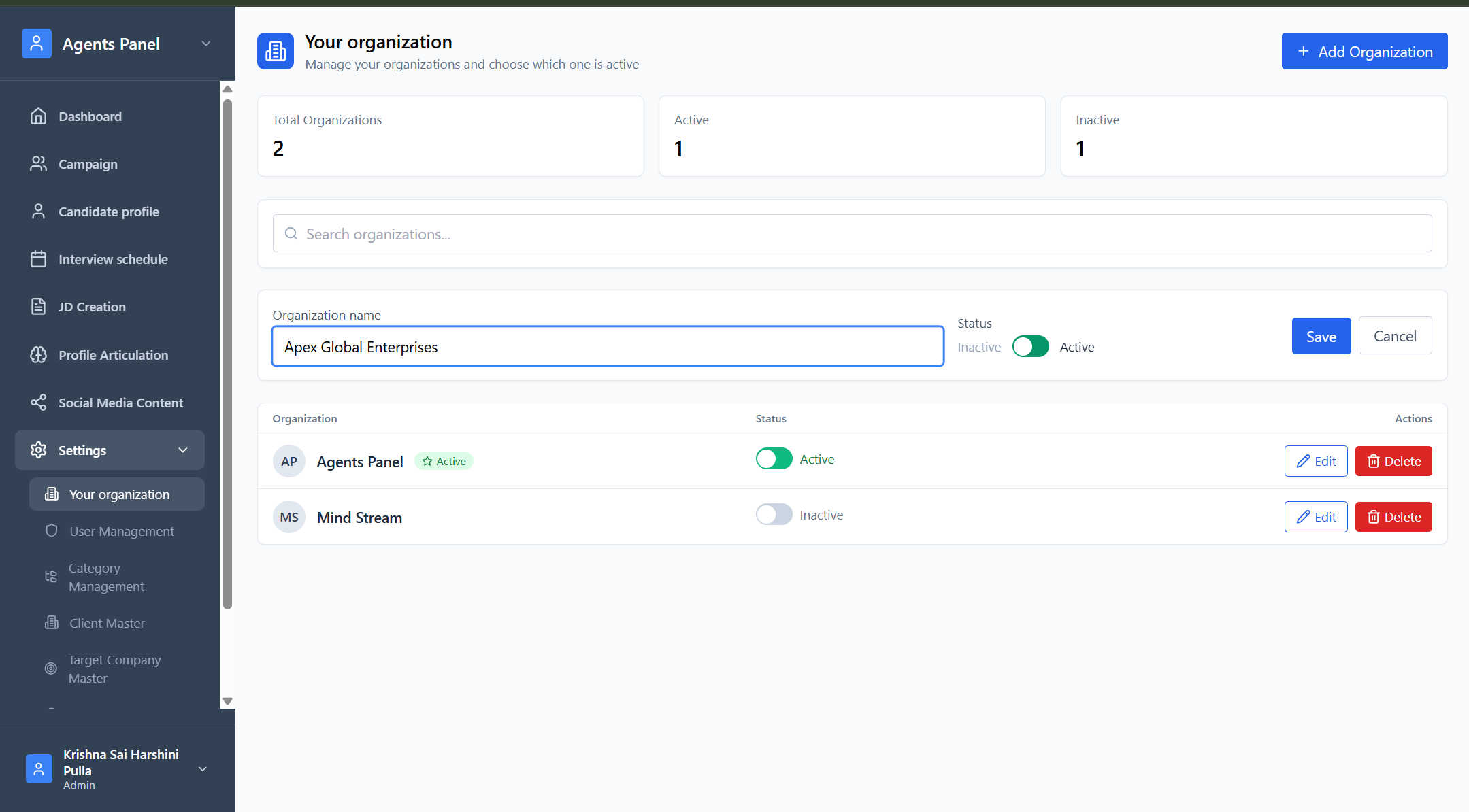
Edit Organization
- Click Edit next to the organization
- Update the name or logo
- Save changes
- Updates reflect immediately across the system
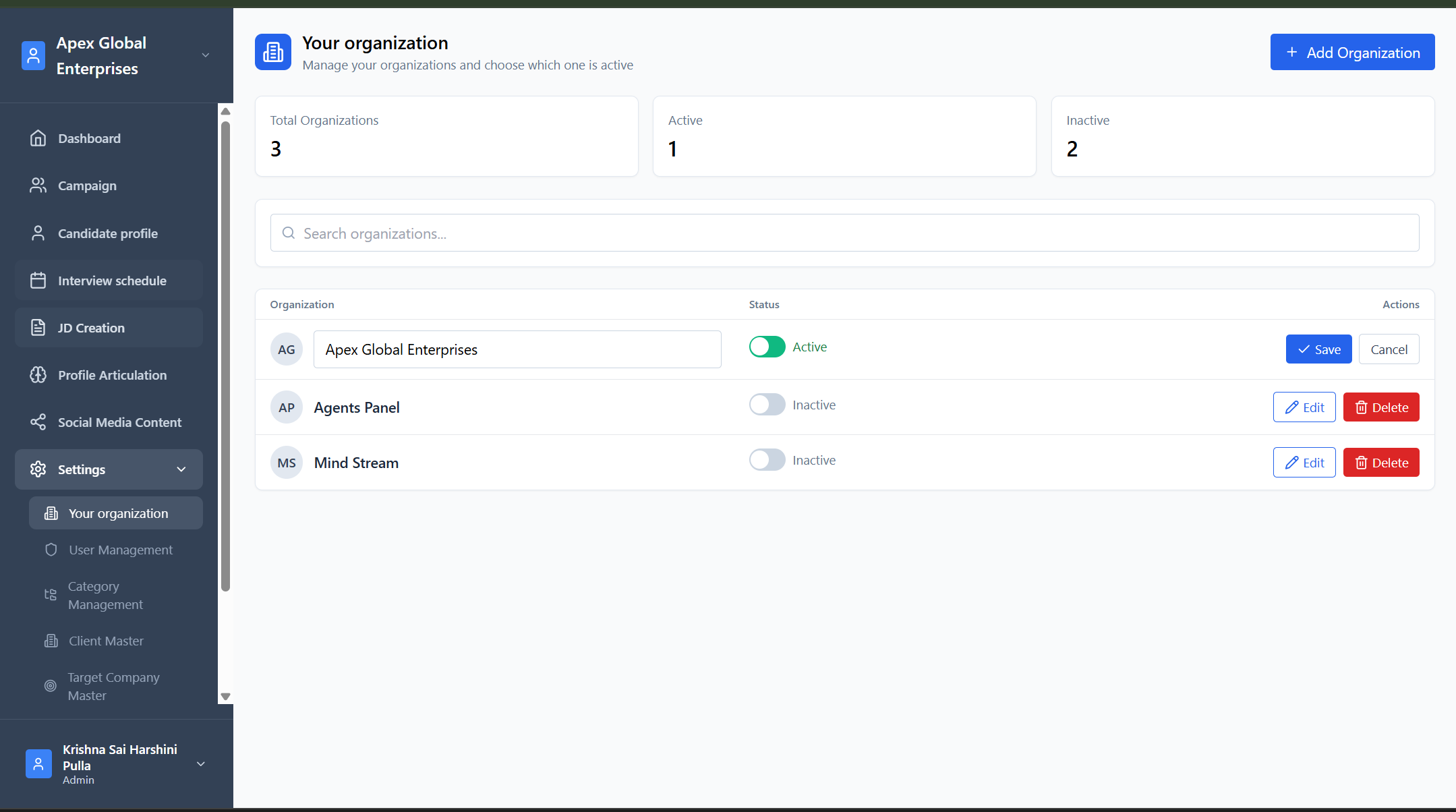
Activate Organization
Only one organization can be active at a time.- Toggle the Status to Active
- Previous active organization automatically becomes Inactive
- Dashboards & data switch to the newly active organization’s context
- Dashboard data
- JD creation
- Campaigns
- User management
- Candidate data
Deactivate Organization
- Toggle status to Inactive
- System requires another organization to be Active
- Inactive organizations cannot be used for data entry
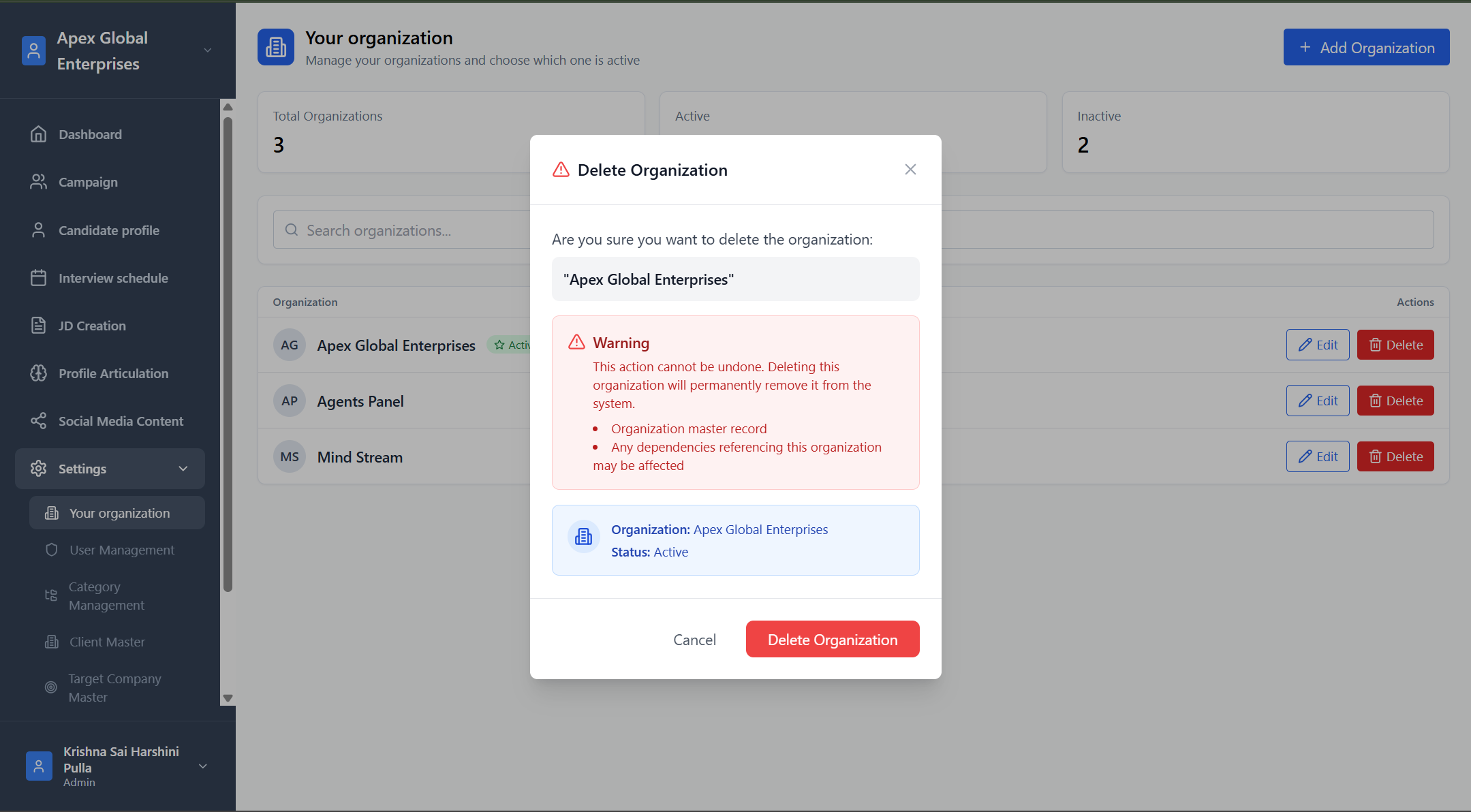
Delete Organization
- Click Delete
- Confirm deletion
- Organization is removed (if not active)
- Active organization cannot be deleted
- Cannot delete if linked to critical system data (optional rule)
Summary
Organization Management controls which company’s data the user is working with.Admins can create multiple organizations but only one can be active.
Activation instantly switches the entire system’s context—users, jobs, campaigns, and dashboards.