
Documentation Index
Fetch the complete documentation index at: https://docs.coffeerms.com/llms.txt
Use this file to discover all available pages before exploring further.
Interview Schedule Workflow
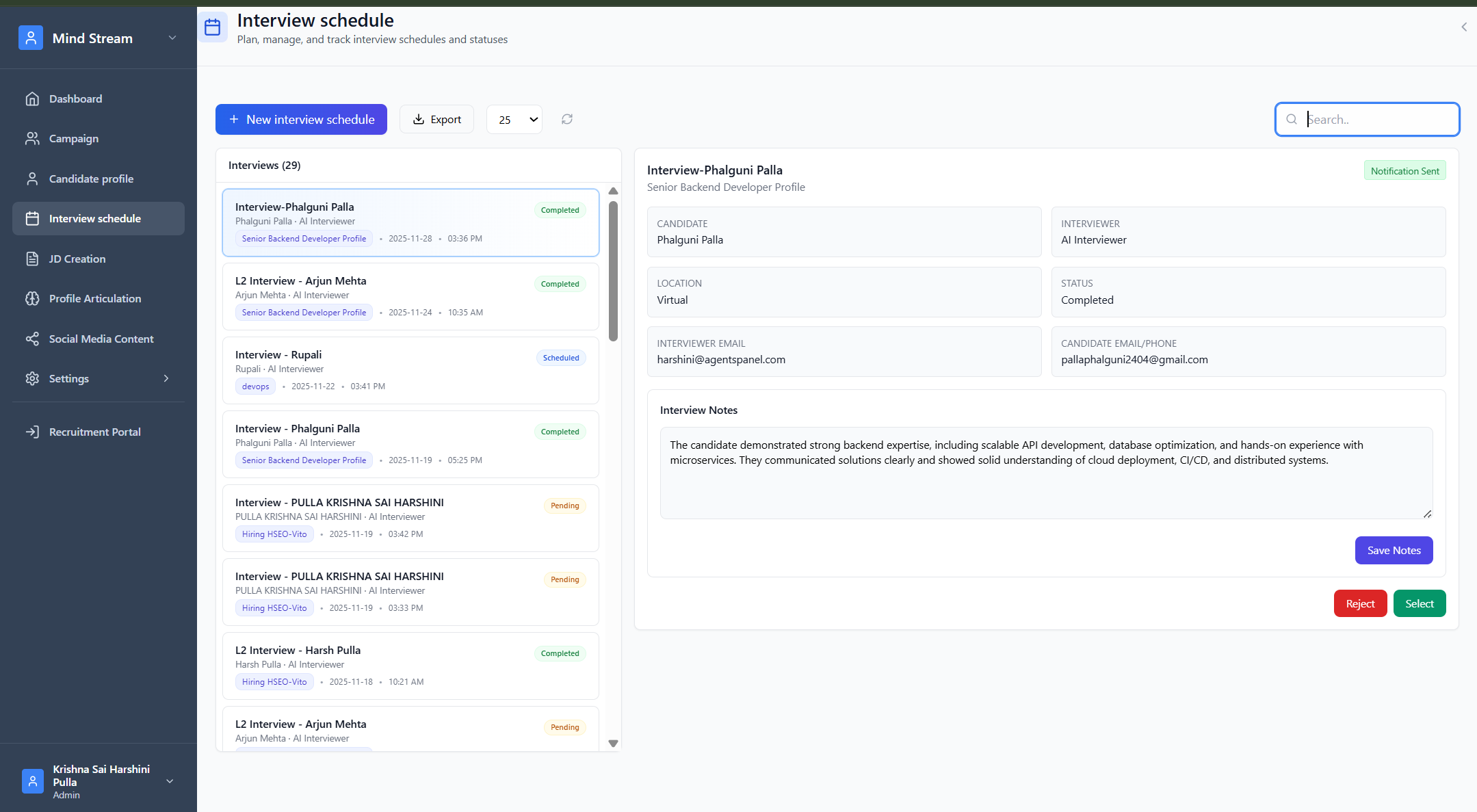
The Interview Schedule module is used to plan, organize, and track interviews for candidates who are shortlisted from a recruitment campaign. It helps recruiters manage interview timings, interviewer assignments, meeting links, communication, and interview outcomes (Select/Reject), all in one place. It acts as the time-based hub of the recruitment pipeline.Candidate Reaches Interview Stage
A candidate is shortlisted from the Candidate Tracker after pre-screening or CV review.From there, the recruiter proceeds to schedule their interview from the Interview Schedule page.
Create Interview Flow (Main Workflow)
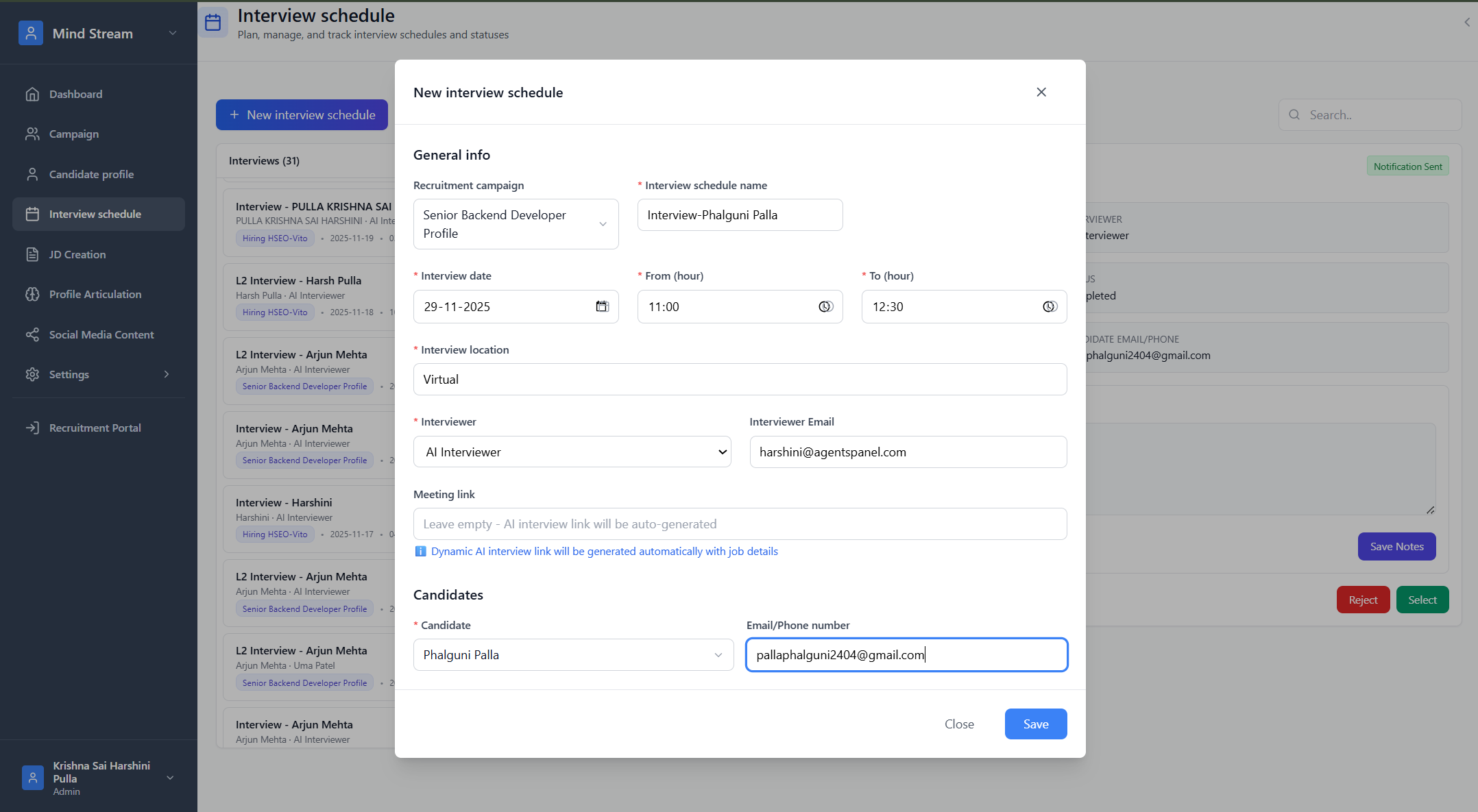
Step 1 — Open “New Interview Schedule”
The recruiter clicks the button to schedule an interview.If coming from Candidate Tracker, candidate/campaign fields are pre-filled.
Step 2 — Select Campaign
All active recruitment campaigns are listed.Selecting one loads all its shortlisted candidates.
Step 3 — Select Candidate for Interview
Only shortlisted candidates from the selected campaign are shown.Recruiter chooses whom the interview is for.
Step 4 — Select Interviewer
Recruiter selects either a human interviewer or the “AI Interviewer.”Step 5 — Add Interview Details
Recruiter enters:- Interview name (ex: “L1 Interview – Arjun Mehta”)
- Date
- Time (From & To)
- Location / Meeting link
- Candidate email/phone
- Interviewer email
- Interview mode (Online / In-person)
Step 6 — Save Interview
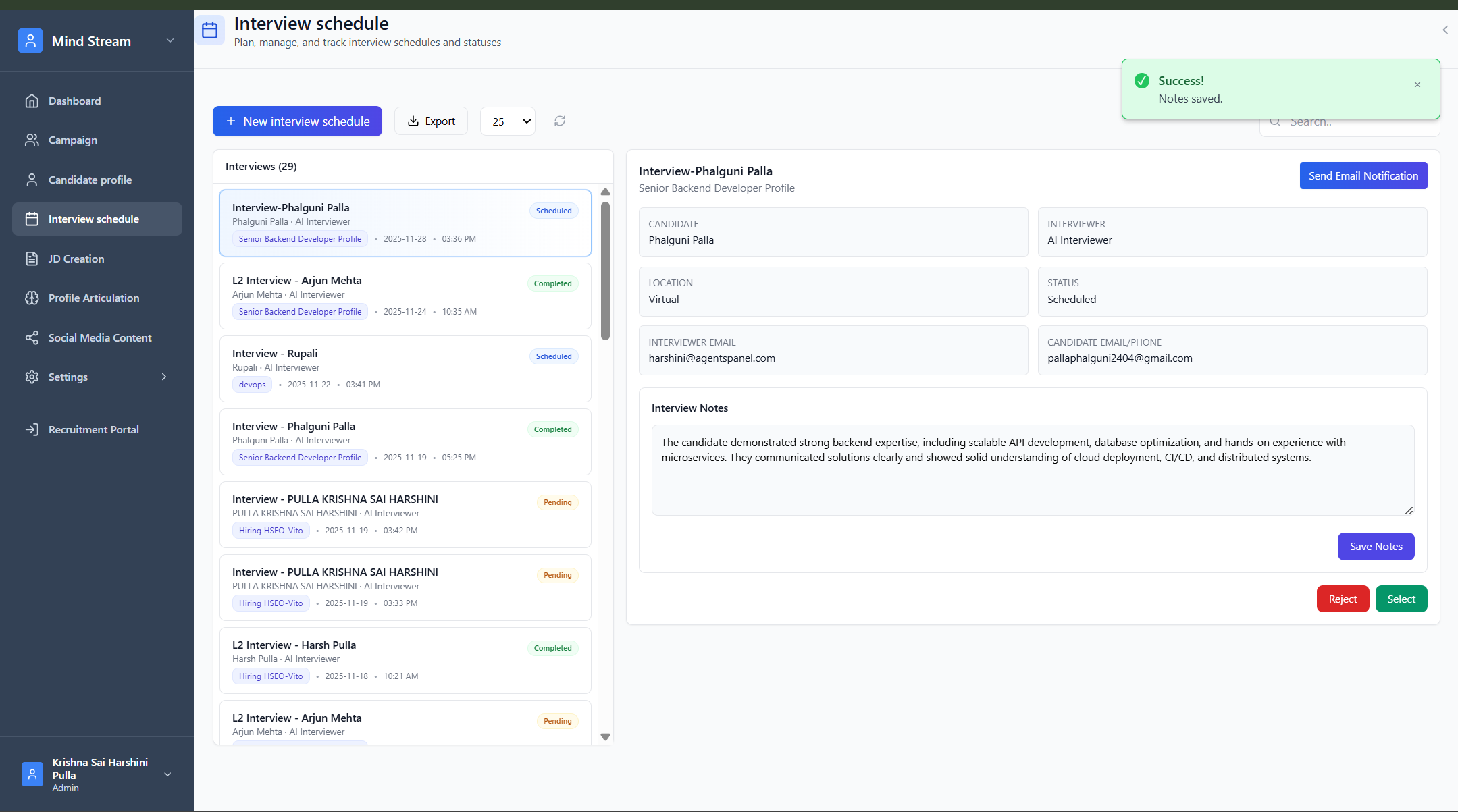
Once saved:- Interview appears in the Interview list (left panel)
- Candidate remains shortlisted, ready for the interview
- Recruiter can now send email notifications
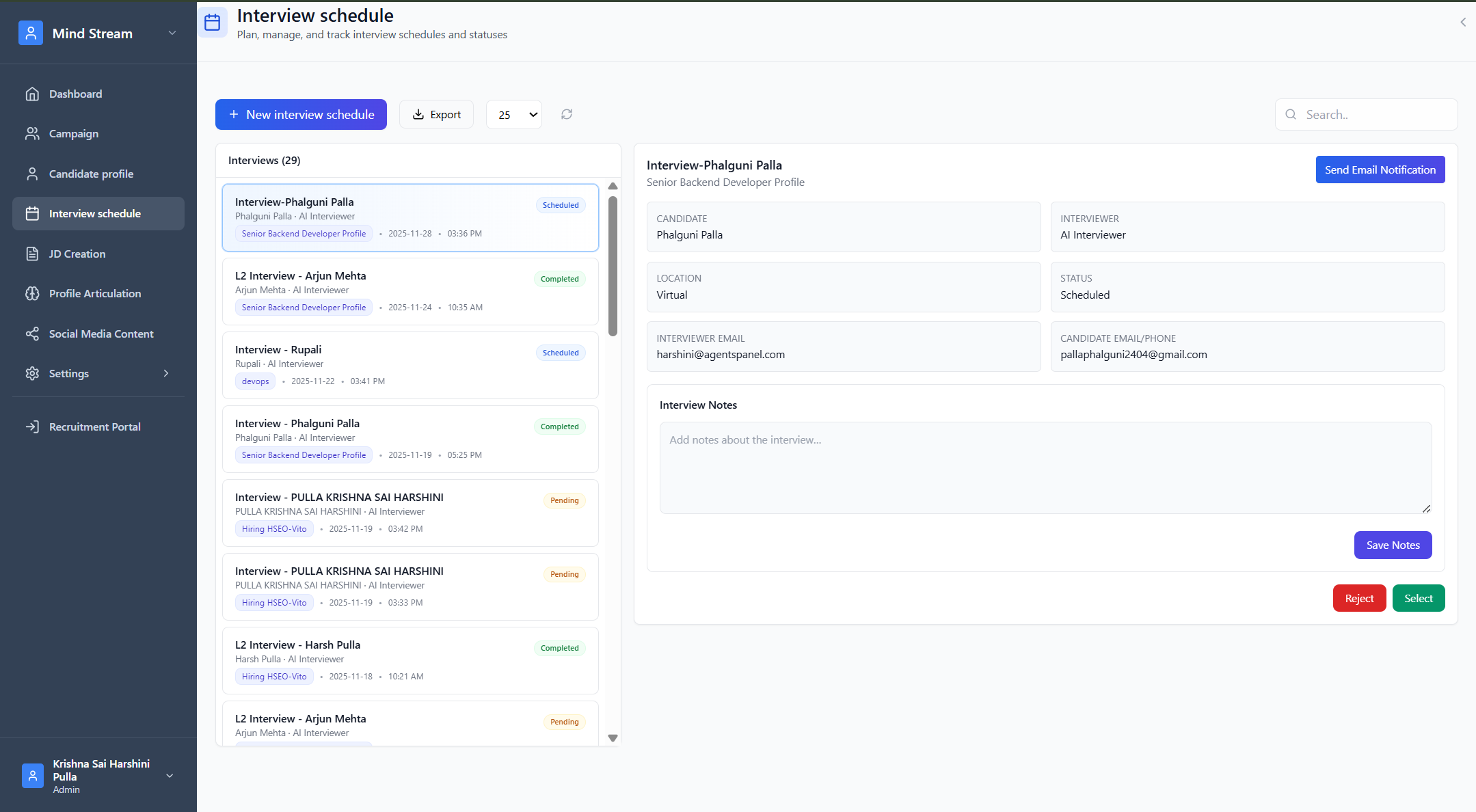
Viewing the Interview
When an interview is clicked:- Full interview details appear on the right
- Recruiter can view candidate, interviewer, timing, location, and status
- Any previous notes are visible
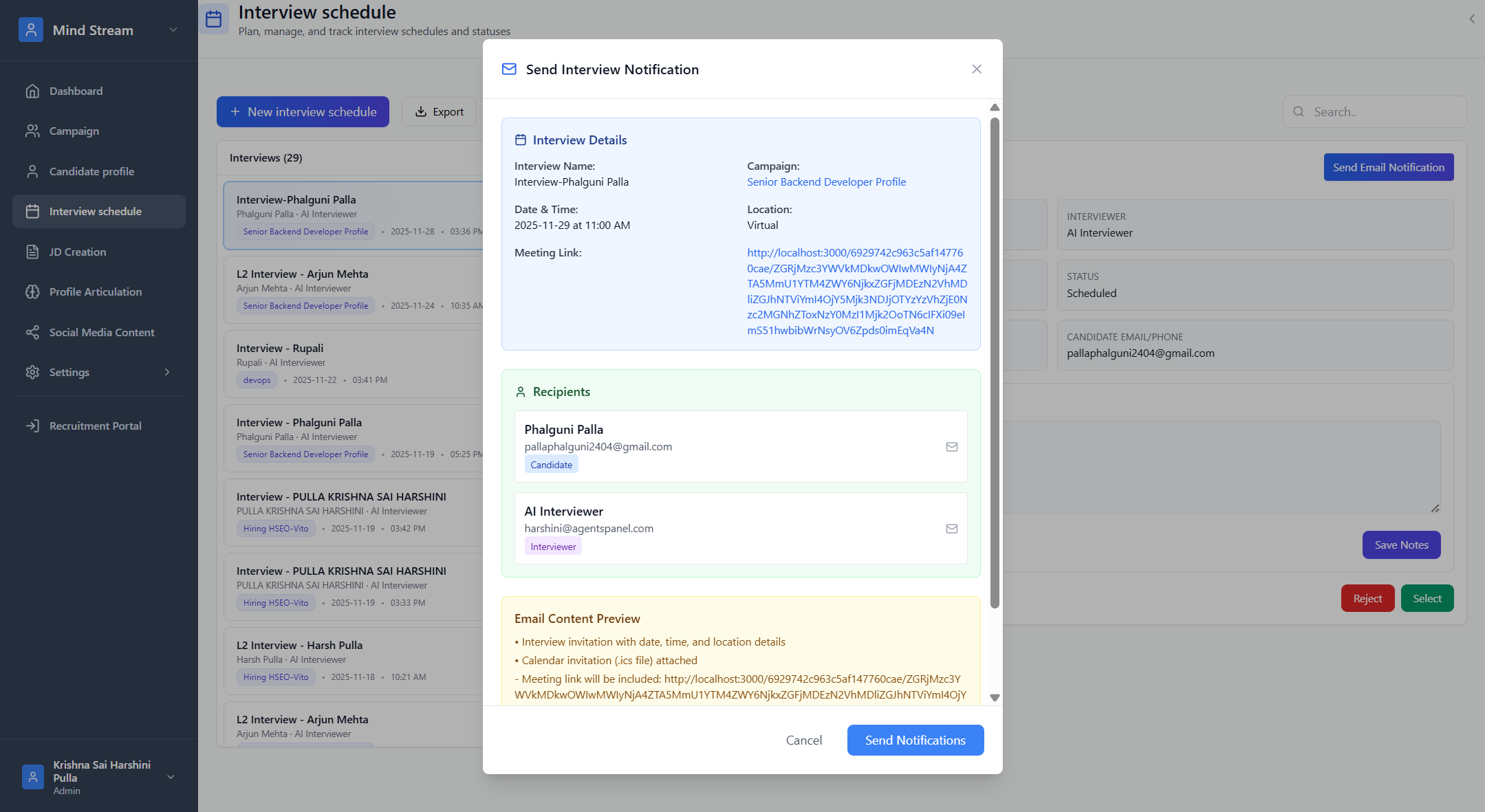
Sending Interview Notification
The recruiter can send the interview invite email to:- The candidate
- The interviewer
- Meeting link
- Date & Time
- Calendar (.ics) invite
Adding Interview Notes
During or after the interview:- Recruiter writes notes
- Notes are saved
- Notes automatically appear inside Candidate Tracker → L1/L2 Interview Notes tab
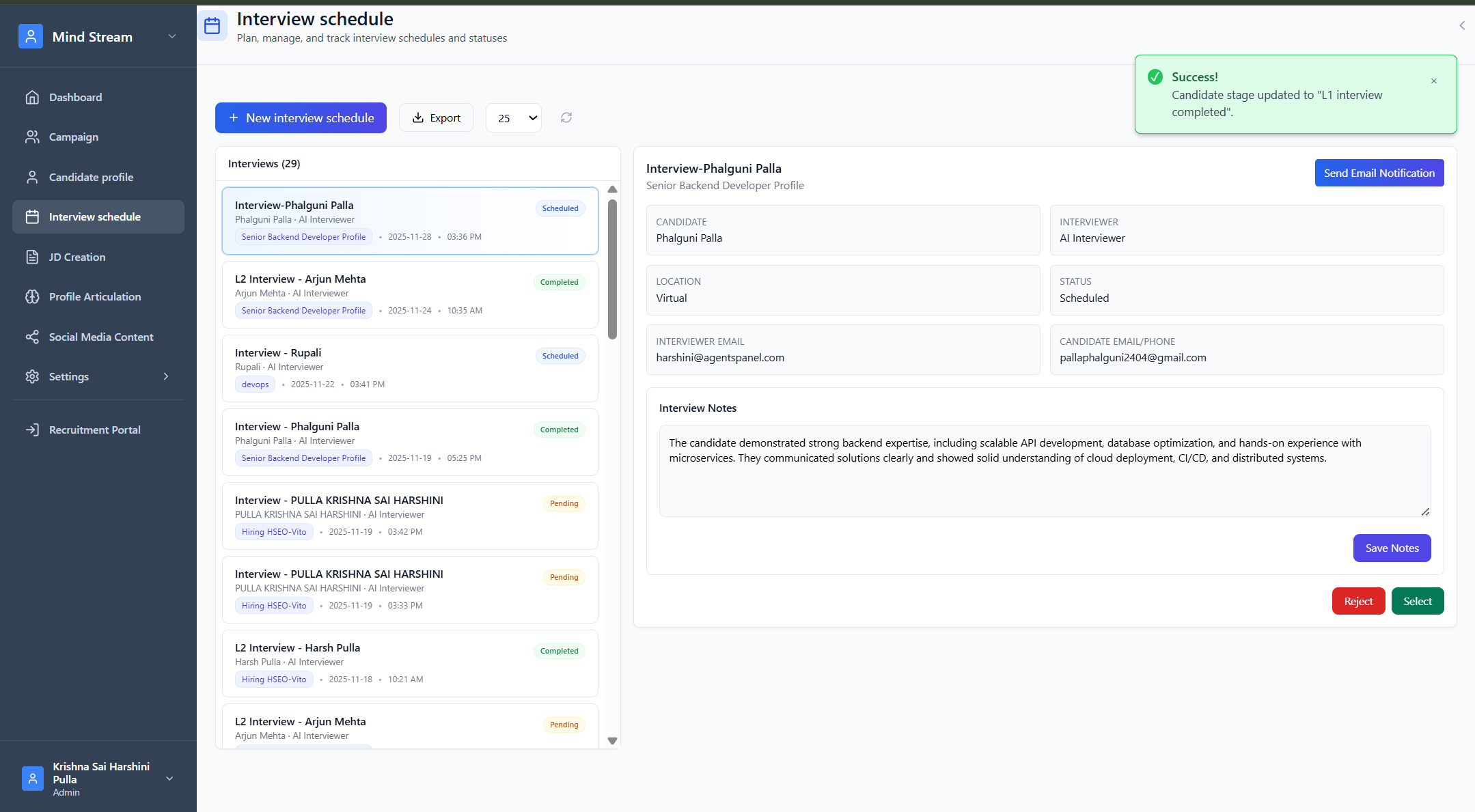
Selecting the Candidate (Move to Next Round)
When the recruiter clicks Select:- Interview notes are saved
- Candidate’s stage is updated (L1 completed → moves to L2, or L2 completed → final stage)
- Candidate appears in the next round in Candidate Tracker
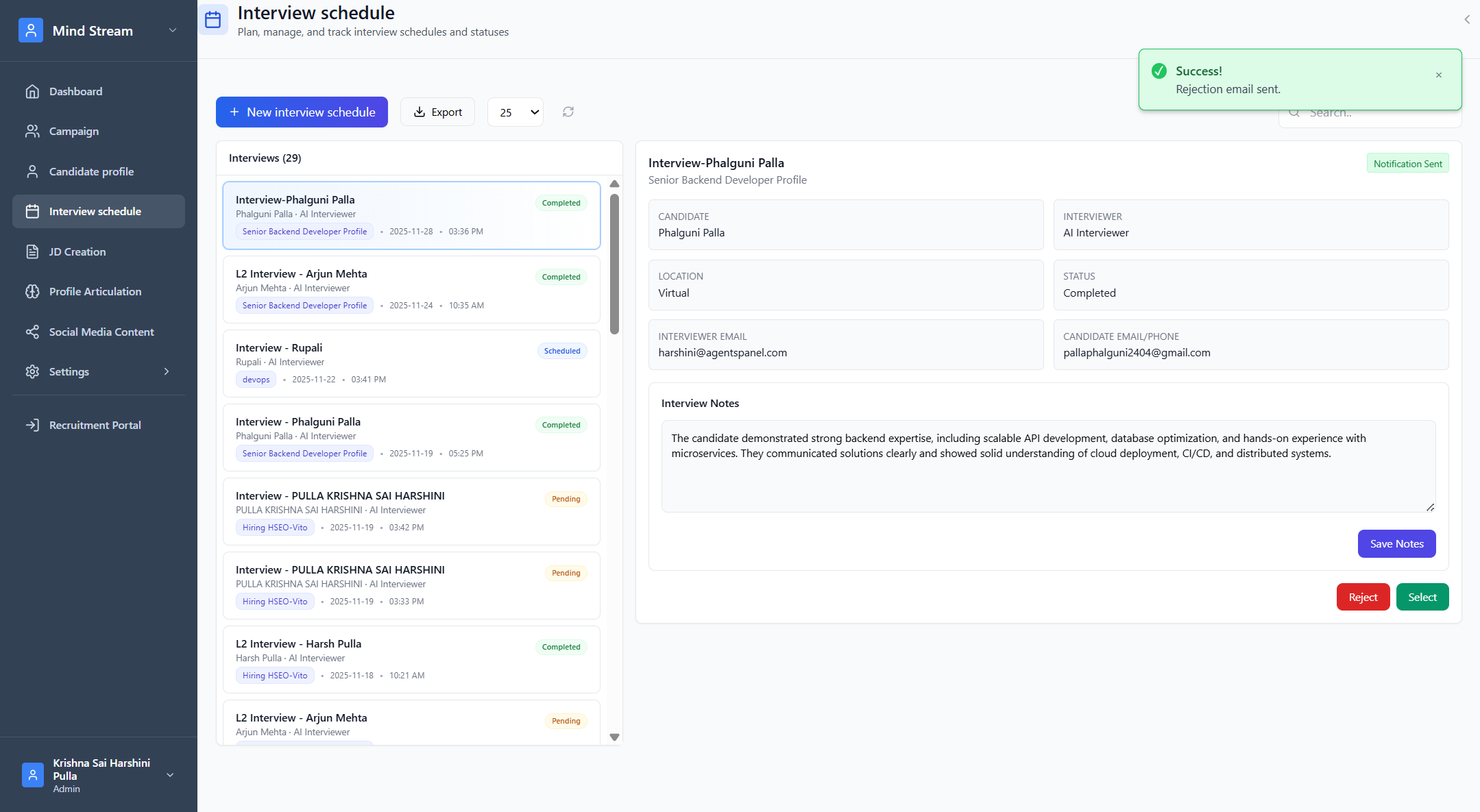
Rejecting the Candidate
When recruiter clicks Reject:- A rejection email is sent to the candidate
- Interview is marked completed
- Candidate status becomes Rejected
- Candidate moves to the Rejected bucket in Candidate Tracker
Search & Filter Workflow
Search Bar
Recruiters can search interviews by:- Candidate name
- Interview schedule name
- Interviewer name
- Campaign name
- Status (Scheduled, Pending, Completed)
- Date/time
- Meeting link/location
Interviewer View Filtering
If the logged-in user has the role Interviewer:- They only see interviews assigned to them
- This ensures privacy and reduces clutter
Summary
The Interview Schedule module manages the entire lifecycle of interviews:- Candidates shortlisted →
- Interviews created →
- Notifications sent →
- Notes recorded →
- Candidate moved to next stage or rejected
This module keeps all interview operations centralized, streamlined, and audit-friendly for the entire recruitment cycle.