
Documentation Index
Fetch the complete documentation index at: https://docs.coffeerms.com/llms.txt
Use this file to discover all available pages before exploring further.
User Management Workflow
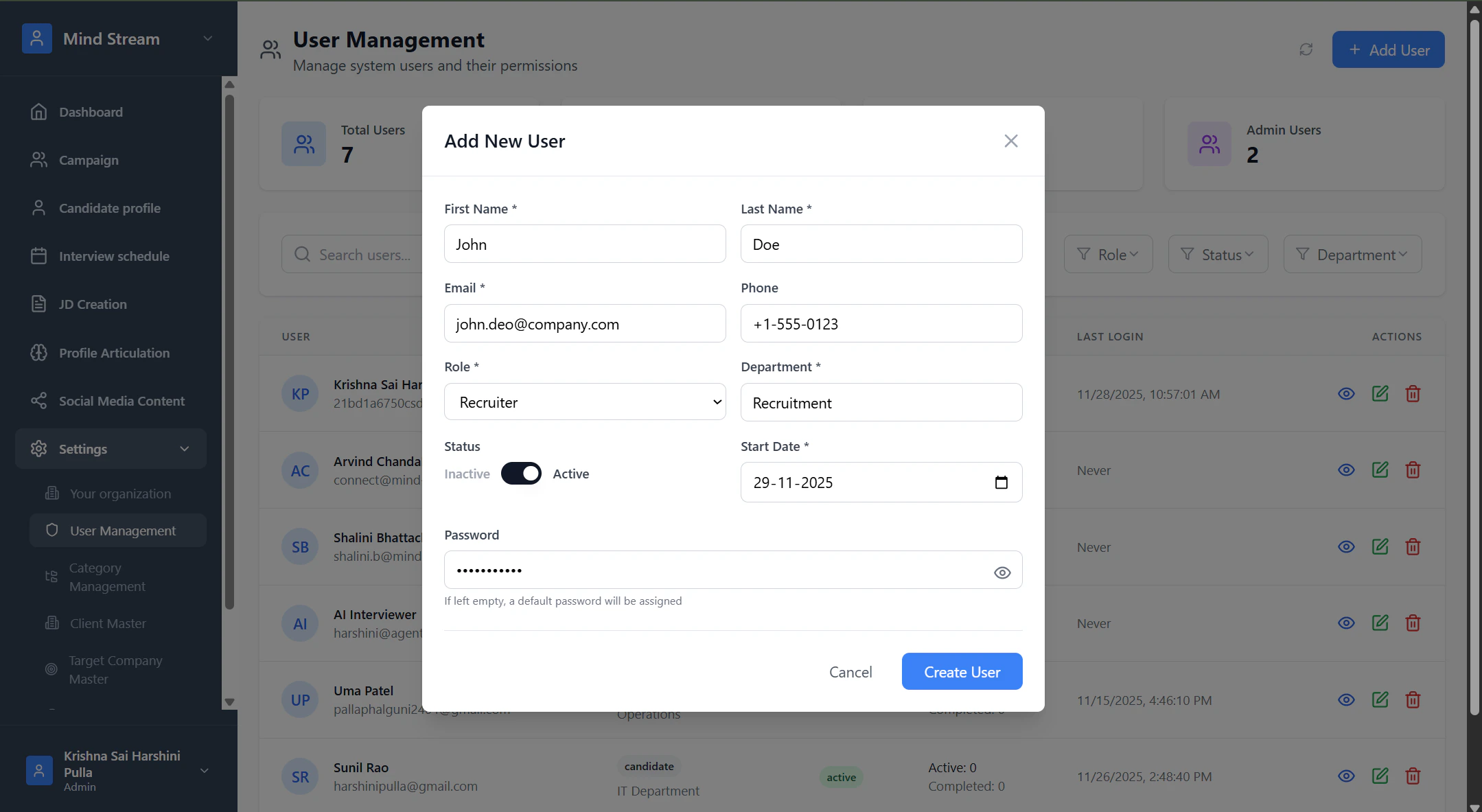
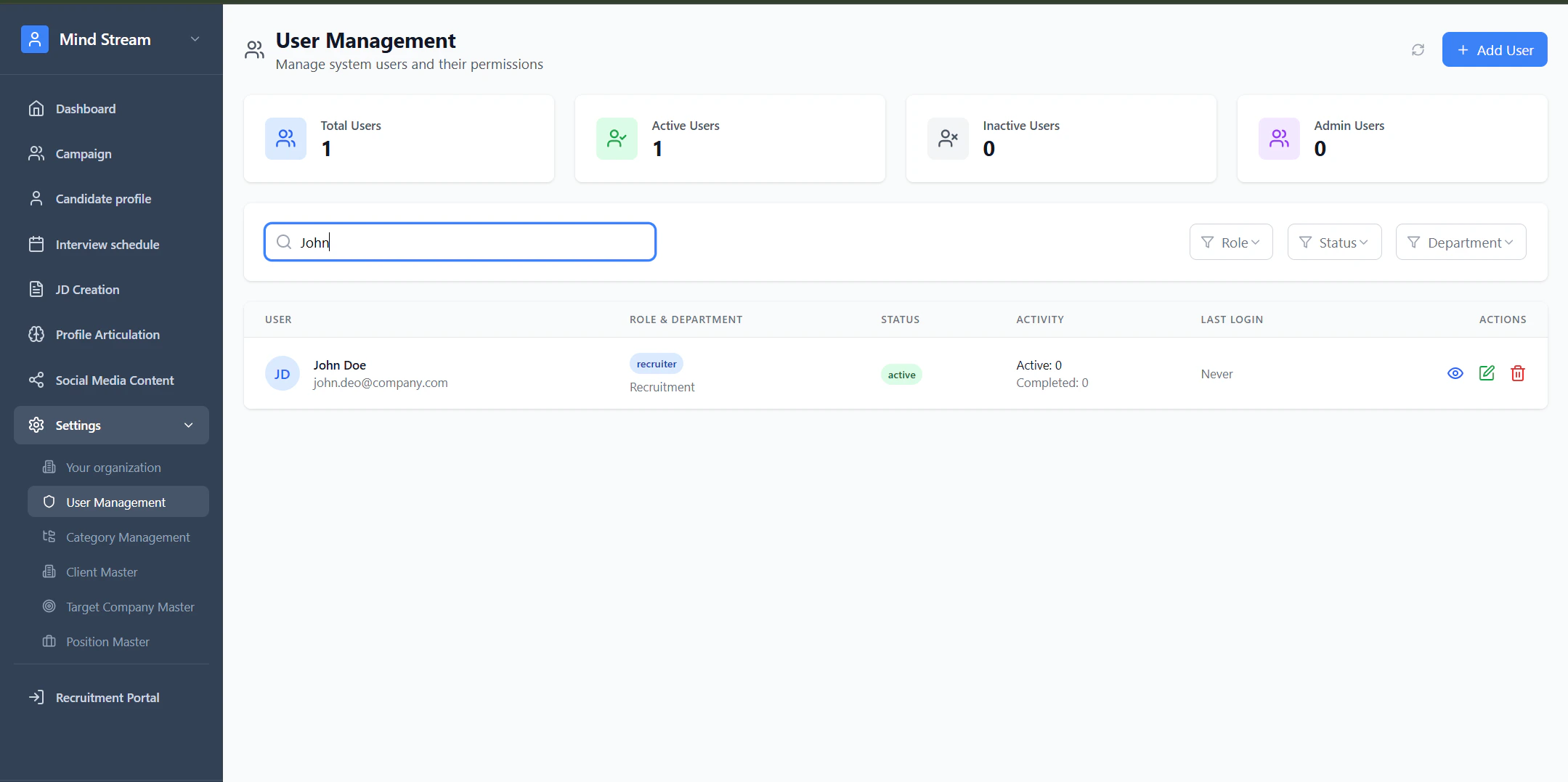
This workflow defines how Admins and Recruiters manage users inside the RMS.Add User
- Click Add User
- Enter name, email, role, department
- Save the user
- User becomes Active and appears in the list
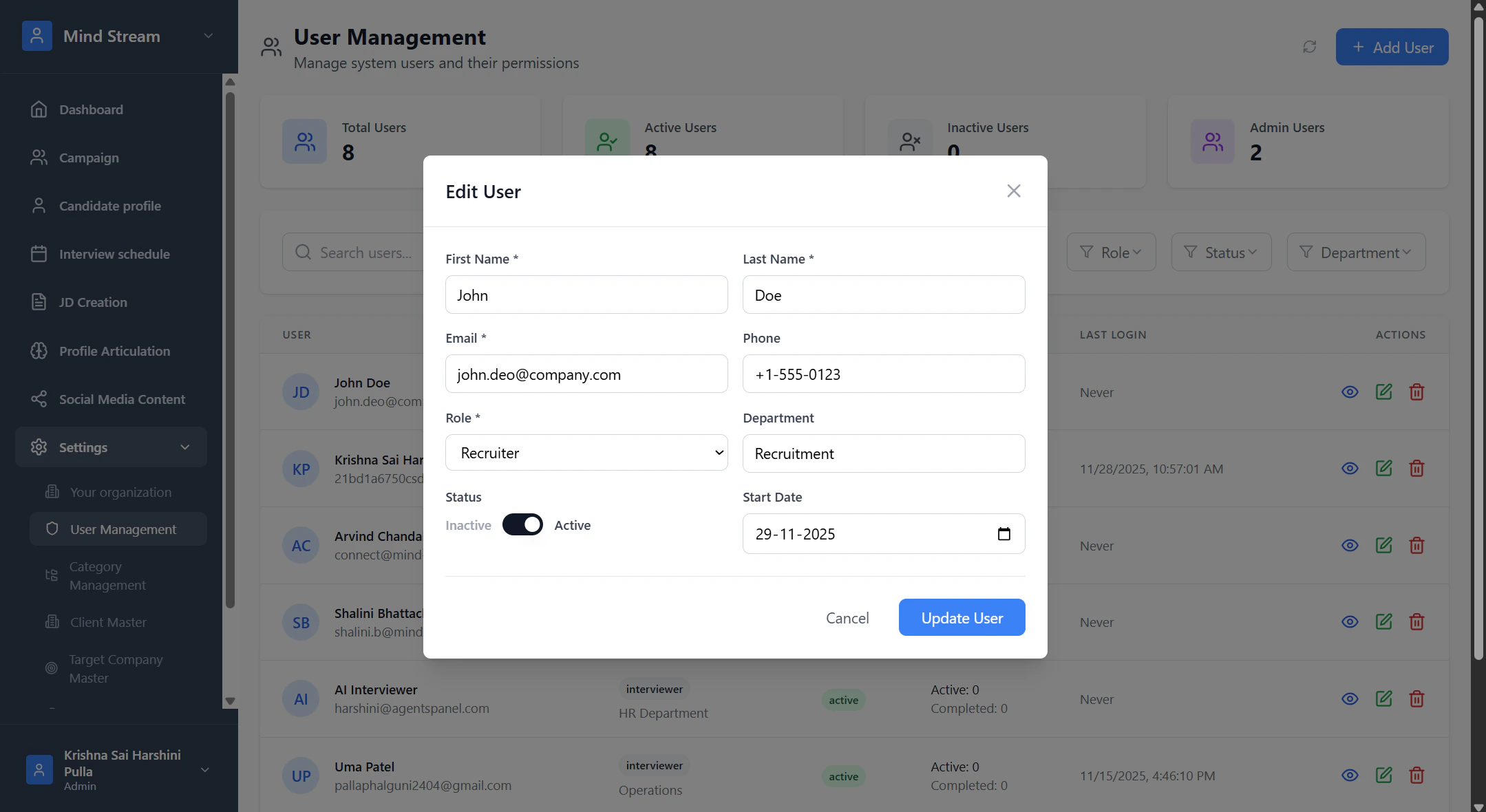
Edit User
- Click Edit next to a user
- Update role, status, department
- Save changes
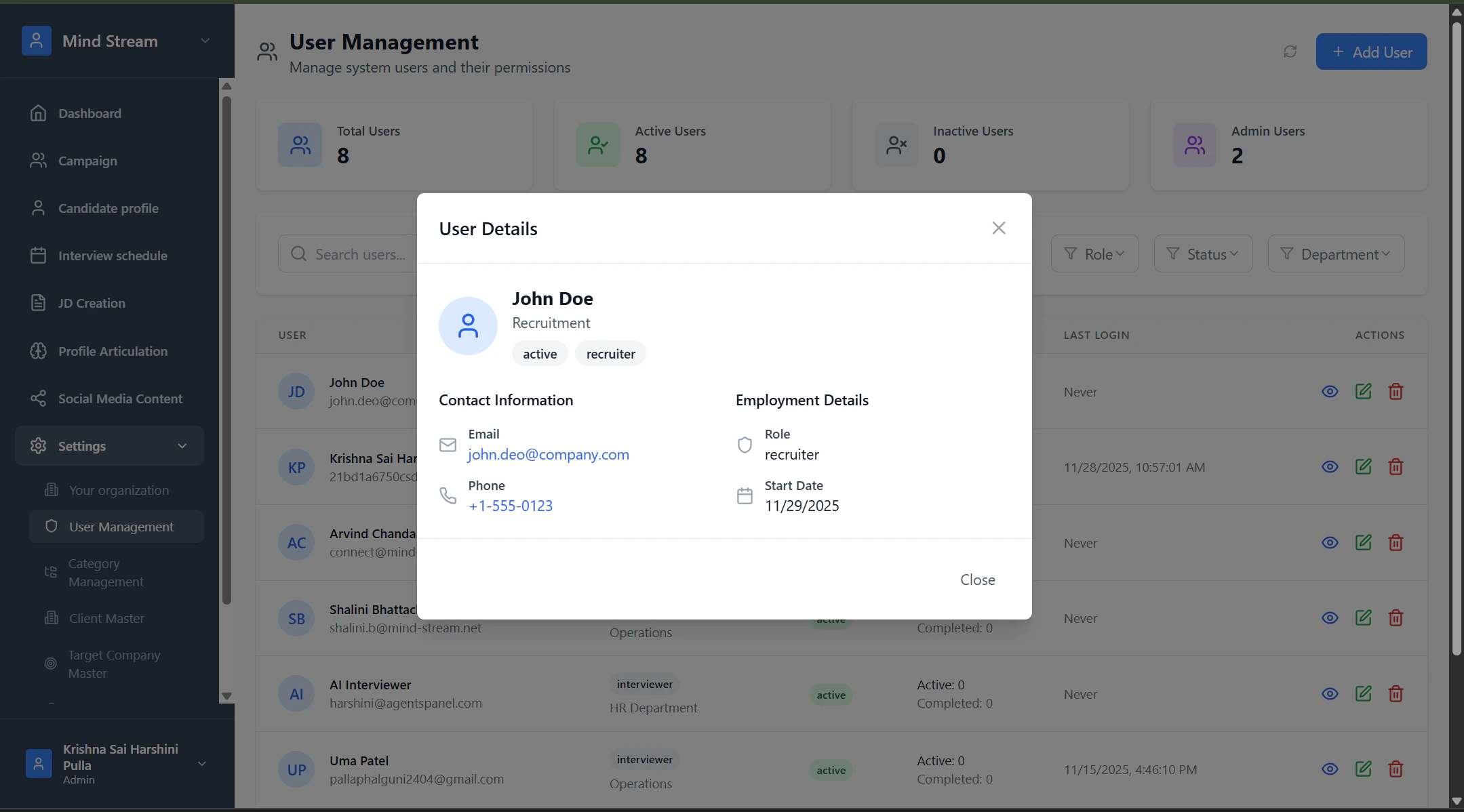
View User
- Shows user details
- Includes name, email, role, phone, activity
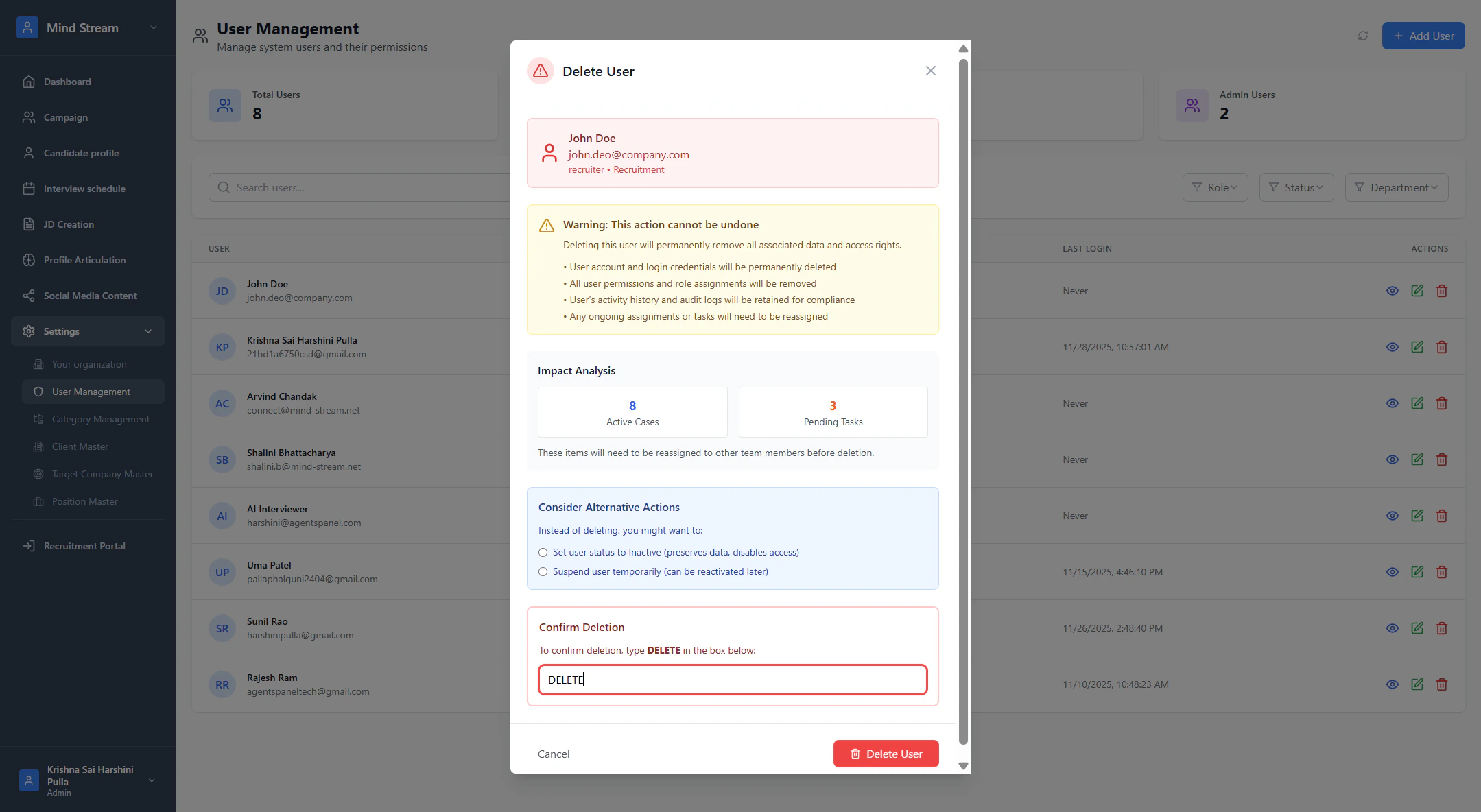
Delete User
- Click Delete
- System asks for confirmation
- User is removed permanently
Status Control
- Users can be Active or Inactive
- Inactive users cannot log in
Search & Filter
You can filter users by:- Role (Admin / Recruiter / Interviewer / Candidate)
- Status (Active / Inactive)
- Department (IT, HR, Recruitment, Operations)
- User name
Access Control by Role
- Admin: Full control
- Recruiter: Can manage users
- Interviewer: Can access only interview page
- Candidate: Can access only candidate profile page
Summary
- Admin or Recruiter opens User Management to view all system users.
- They can search users by name or email and filter by role, status, or department.
- To add a new user, they click Add User, fill the details, and set role, department, and status.
- Existing users can be edited, viewed, or deleted using the action icons.
- User status and role determine what parts of the system they can access.